How to Create Professional Product Shots with a Light Tent and Digital Editing!
It’s finally here! I promised dozens of people many moons ago that I would show exactly how I do my product photography for my reviews and write-ups on Predatorstuff.com. For those of you that’s don’t know, I am an avid collector of models and prop replicas from the Alien and Predator movies and maintain the largest Predator collectibles resource site on the net. Predatorstuff.com is a huge collection reference guide where I try to document every kit and toy in circulation related to Predator, and I write reviews for new releases and custom pieces made in the community. Many folks love my work and feel that my photography is noteworthy enough that it’s been used for package art and magazine stock photos several times in recent history. Some assume I have thousands of dollars worth of gear, when in fact my lighting setup cost less than $100!
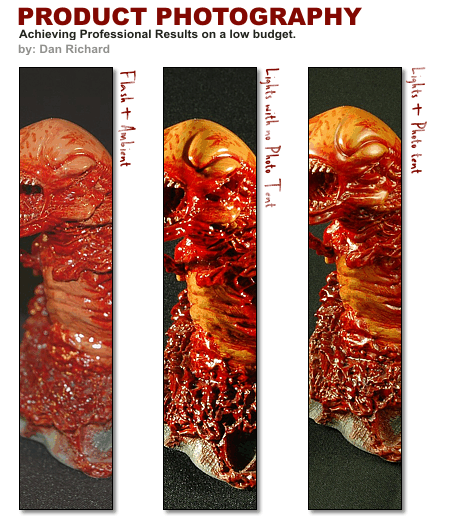
With that said, I present you my product photography tutorials, featuring my special guest, the alien chestburster! Why did I choose this gruesome thing for this tutorial? It was the first thing my hand touched when I opened the case actually, plus I like it. It also has a lot of gloss, so it’s perfect to show the non-trained eye what I will try to convey in this lesson. This tutorial will have 2 parts:
Part 1 – Product Shot Photography – Why you should use a light tent and what the difference is between using a light tent versus no tent or using Flash.
Part 2 – Using simple digital tricks to enhance your photos for that extra boost! I will be using Corel Photopaint for this step, but you can also use Photoshop quite easily.
The final result will be a stunning product shot like this:
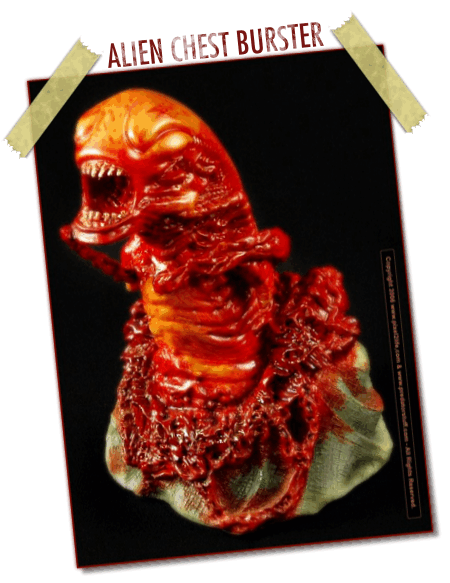
All set? Let’s start with Part 1 – Product Shot Photography.
PART 1 – PRODUCT SHOT PHOTOGRAPHY
One of the easiest things to do in the world of Photography is take good quality product shots, IF you know what you are doing. The best part about upgrading your photography skills to this level is that it’s relatively inexpensive at $100 or less to get started. In fact, if you design a light tent or light-box of your own, this could be less than $50! We’ll talk about that in just a bit… Let’s start with the equipment we’re going to need.
The first thing you need is a camera! (duh). I will be shooting my product shots with a Nikon D70s with a sturdy Manfrotto brand tripod. You can use any camera you wish, as long as you have some sort of control over aperture and shutter speed (exposure) and it’s VERY important that you have a solid tripod. When taking product photos, you should NEVER be taking a shot with the camera in your hands. If you don’t have a tripod, this tutorial will be more than just a little useless to you because we’ll be dealing with 8 second exposures, which requires a completely motionless camera.
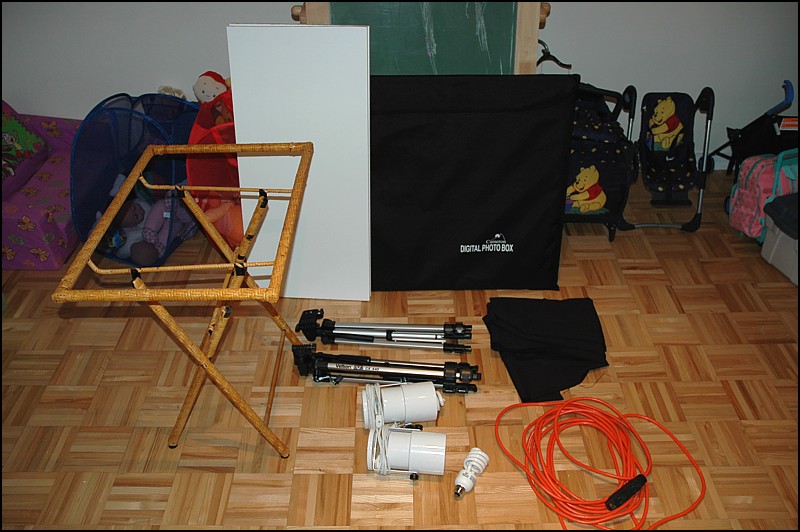
Now let’s look at the gear we’ll need for our lighting area… I’ll be using a small fold-able coffee tray with the tray removed, two pieces of wood to lay on top of the table, black backdrop cloth (bought from Walmart for $3), two lamp fixtures ($2 each at Walmart) and 2 Energy Saver light bulbs ($5 at Walmart), an extension cord, 2 cheap tripods from Walmart ($12 each) and a light tent made especially for digital photography (purchased locally for $70):
The energy saver lights work VERY well for this application for 2 specific reason… they stay very cool when lit (you can touch them while they are on and not burn yourself at all) and they give off a very clean, white light. Regular incandescent bulbs are very yellow and makes white-balancing a pain in the butt. I bought the light fixtures and bulbs at Walmart for $10 total.
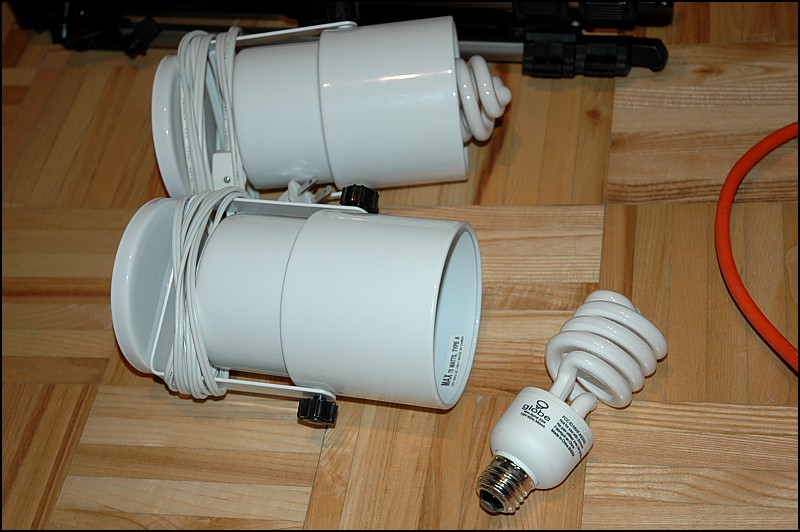
These very light tripods are actually horrible for stabilizing a camera, but they make fantastic mounts for the lights! All I do is flip up the base that normally connects to the bottom of the camera and the base of the light fixture slides right over. I can move this base up and down and side to side to move the angle of the lights.
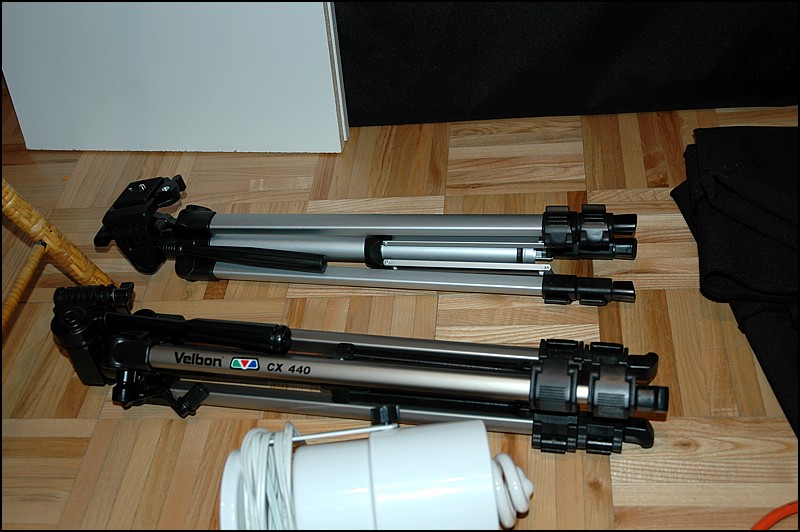
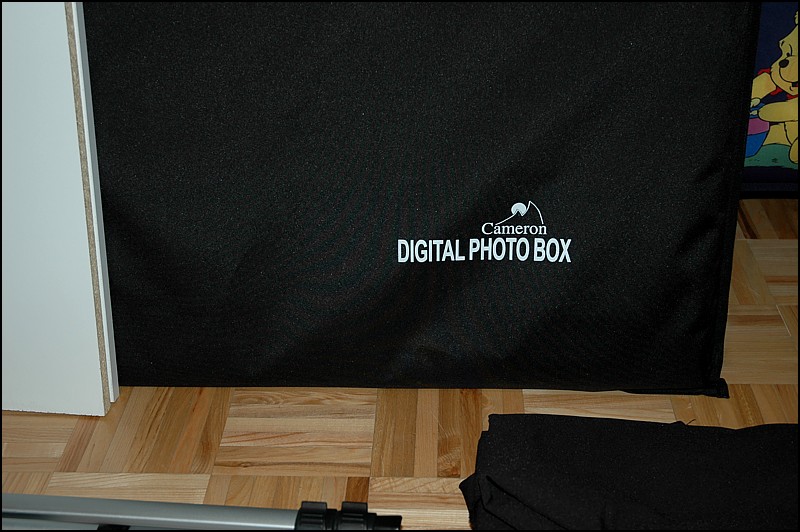
And finally, the star of our show! A Cameron Digital Photo Box, aka. light tent. I believe this model is the 28″ version, which is considered fairly large as far as light tents go, but I wanted to be able to photograph 1:4 scale figures, so I needed the height. This model also comes with the standard color backgrounds… white, grey, green and blue. I love to use black backdrops, so a quick trip to Walmart and I bought some black material that made a perfect backdrop. The slick part of this tent is that it collapses down into a big flat square that slides into a black sleeve as seen below:
Before we go any further, I want to quickly touch on backdrop material… As I found out through trial and error, you can’t just take any material and use it as a backdrop, especially for dark colors. The rougher the texture of the cloth the worse it is because it means the cloth has a very uneven surface that will create highlights and shadows. This means that the cloth will be more visible in your photos, and if you’re trying to get a black background, that’s the last thing you want showing in your pics. I’ve found that the best material is a smooth textured cloth like the kind used for suit pants. It’s actually cheap to buy at Walmart… just go in the sewing section and you buy it by the meter or yard.
Now then, let’s look at various lighting conditions and how they affect your photographs. The following photos in these examples are straight from the camera and have not been touched up whatsoever. This is raw footage, and is a solid reflection of the results you would get under similar conditions with pretty much any camera you use. In this area of the tutorial, I am going to mention aperture and shutter speeds. if you’re not sure what F-Stops are and how aperture can affect focus area, you should probably check my tutorial on Aperture and Shutter Speed for Product Shots.
Once again, please note that you should ALWAYS take your product photos with a tripod unless you are using off center flashes with reflectors and/or diffusing umbrellas, in which case you can go handheld because exposure times are so fast. These are professional flash setups, and chances are you don’t have one, otherwise you wouldn’t be reading this tutorial past the first few words. With that said, let’s look at the first sample, which is a photo take with our photo lights on as well as the built-in flash:
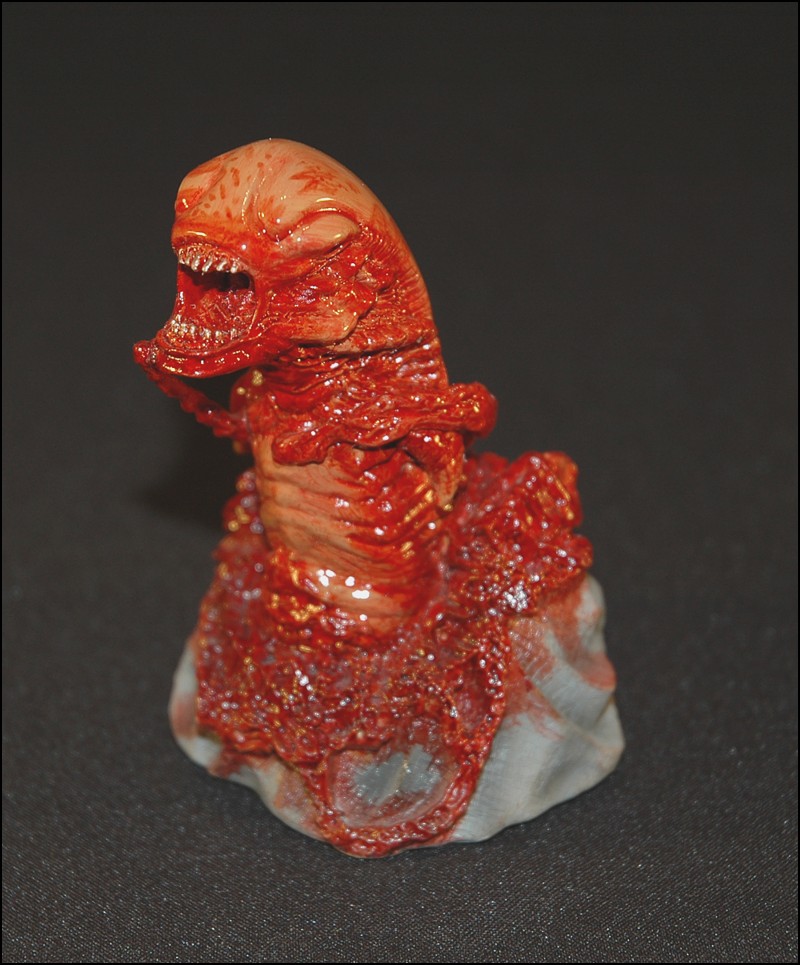
Here’s how the setup looks while taking the photo (special thanks to my daughter who donated her playroom for 30 minutes for this tutorial):
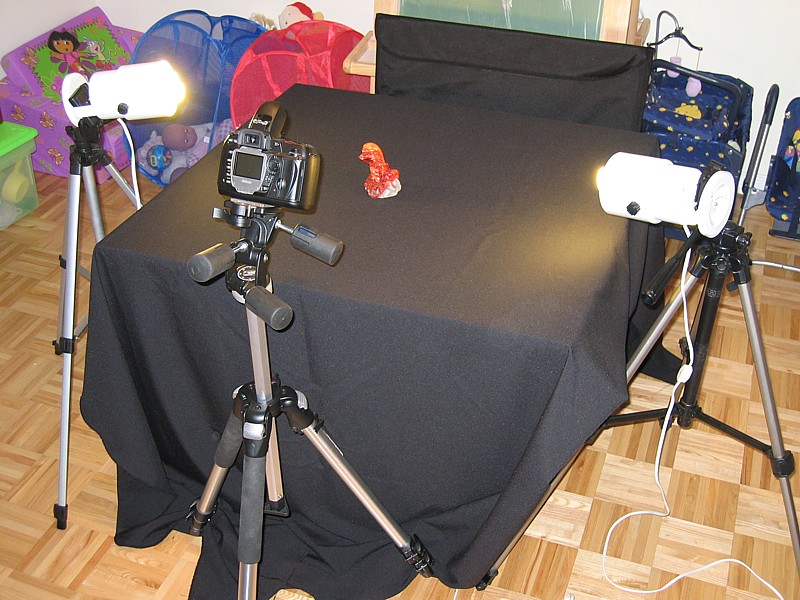
Next up, we’ll turn off the flash and just rely on our $10 lighting rig. We’ll pump the camera’s shutter speed to a full 5 seconds and close up the aperture to F29. By closing up the aperture, the entire statue will be in focus instead of just the main focus area like it did with the flash.
The physical setup is exactly the same as before, except this time I turned off the flash:
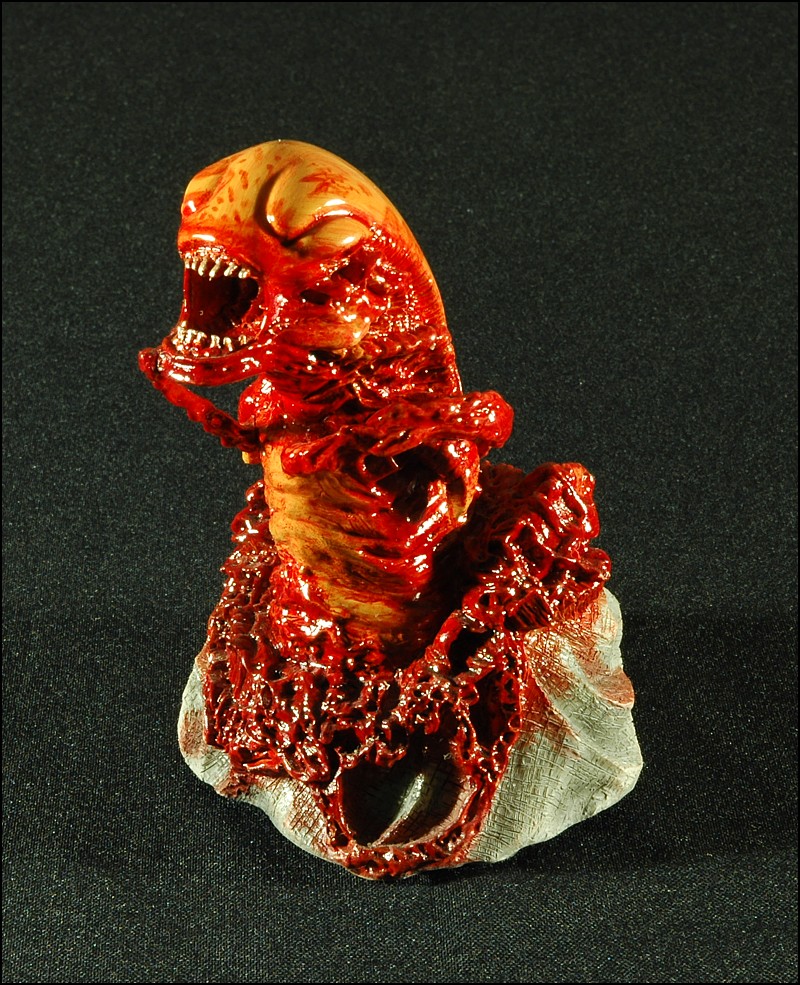
As you can see, we’re solved the issue with our colors getting washed out by turning off the harsh effects of using a flash. The colors here a nice and brilliant, but we now have a new issue. The direct light has nothing in between the fixtures and the statue to diffuse and soften the light, so we end up with very harsh highlights and super dark shadows, which have eaten up quite a bit of our detail. If we used a statue with a lot of large, smooth and glossy features, there would have been a lot of glaring “shine” too. So, we’ve solved the color issue, but now we have to fix the harsh effects of hard light.
The next step is to get our light tent in place! The light tent is made of a super thin plastic based material that is specially made to diffuse lights for product photography. The material will diffuse and soften the light for even highlights and will help to cut down on glaring highlights and harsh shadows. The result will be a well lit piece with maximum details while still having effective lighting and rich colors.
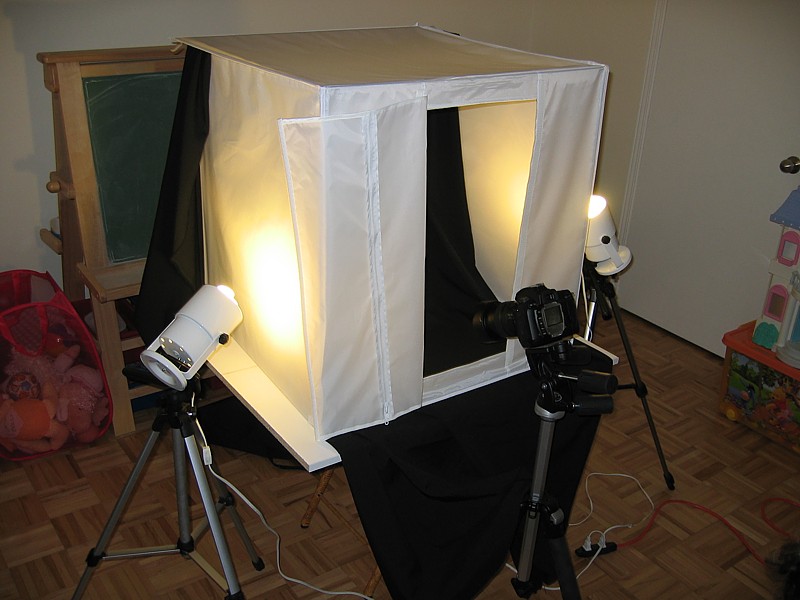
Here you can see a couple of angles of the setup. I’ve placed the tent on the table, moved the lights a bit and placed the statue inside:
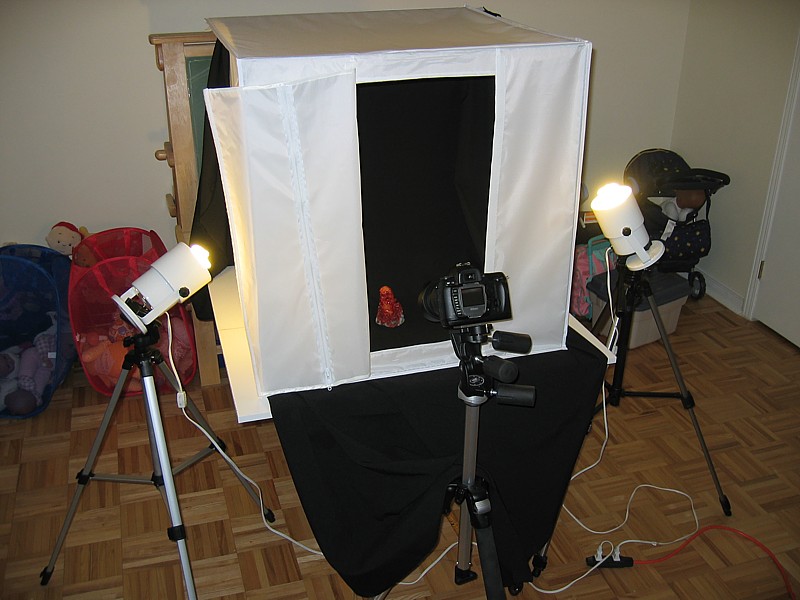
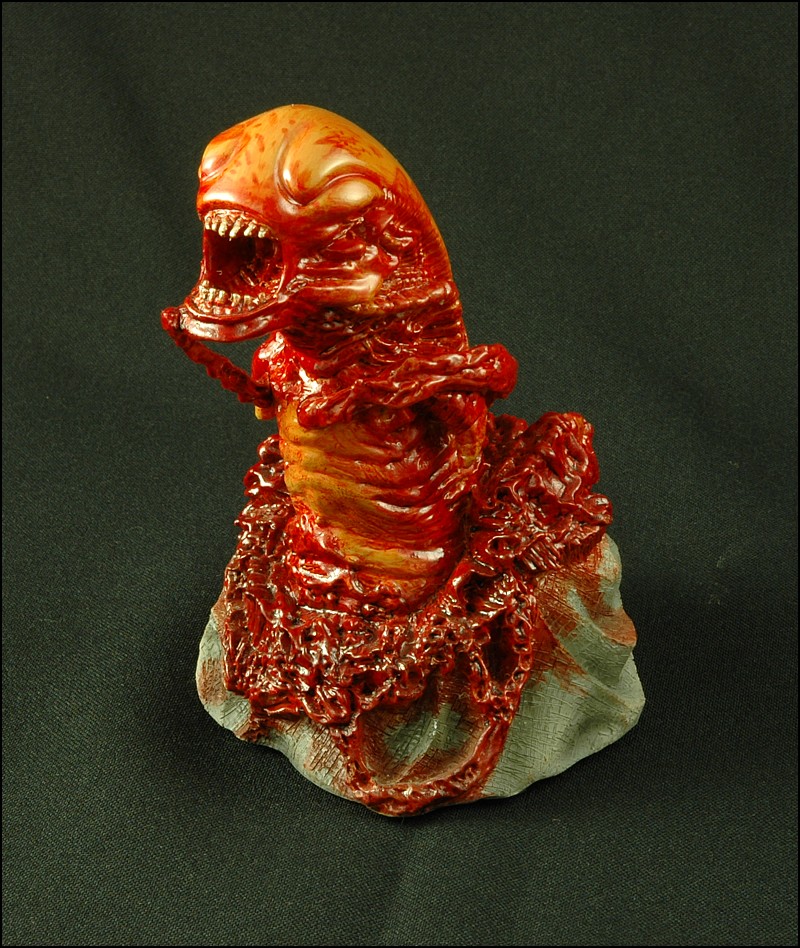
Looking at the photo, you can clearly see details, such as the etching marks in the base, that were missing in the other photos and all the highlights and shadows are much softer overall. This photo was also taken at F29 for maximum details, but I slowed the shutter speed to 8 seconds for this shot. You can clearly see that this photo is far superior to the other 2 samples and with further tweaking of lighting positions and aperture, you could darken out the background even more. As it stands, you now have a much more effective and professional product photo, and you’re well on your way to shooting magazine ads!
Before we move on, I just want to give you a little warning about light tents… they are made of very thin material that is quite susceptible to heat. If you are using lamps that get hot, keep then far enough from the light tent so you don’t burn the material or start a fire. With the Energy Saver bulbs I have, I can keep them an inch from the material, but normal light bulbs need to be quite a bit further or it will literally melt the tent.
Now then, are you wondering how you can get one of these light tents? Any local professional camera shop should have them, or you can buy one of the hundreds listed on eBay. They are very popular because of how inexpensive they are considering the results, so they’re pretty easy to find. You can also make your own if you’re handy enough… in fact, I know one guy that used to use bed sheets to diffuse his lights! For the sake of your sanity and ease of use, I recommend springing the $50 for a real light tent. Trying to figure out how to hang bed sheets from the walls and ceiling isn’t exactly productive photography time.
There you have it folks! That’s how I take my product shots with a $100 lighting setup! Next up, I’ll show you some simple tricks that can be used to bring your photo’s colors to life and a subtle effect that ads a professional look to your photos. If you have Photopaint, Photoshop, GIMP or some other graphics program with basic filter effects, move on to Part 2 – Using simple digital tricks to enhance your photos for that extra boost!
PART 2 – USING SIMPLE DIGITAL TRICKS TO ENHANCE YOUR PHOTOS FOR THAT EXTRA BOOST!
Welcome to part 2, where we’ll spend a few minutes tweaking our Alien ChestBurster product shot so it has that extra professional feel to it. If you were linked directly to this part, feel free to view Part 1 of this tutorial where we look at basic product shot photography and why you should use a light tent and what the difference is between using a light tent versus no tent or using Flash.
In part 2, I’m going to show you how to turn this final product shot that came straight off the camera…
… into this digitally mastered version:
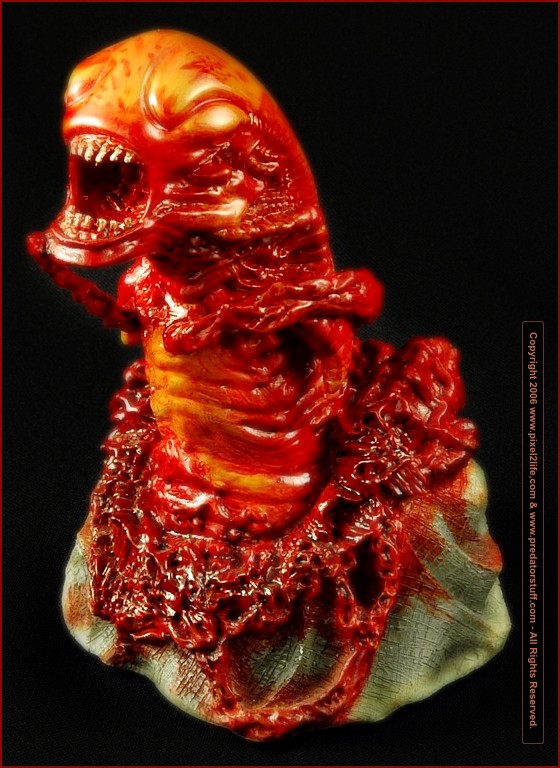
Let’s open up final photo in Photopaint and get started!
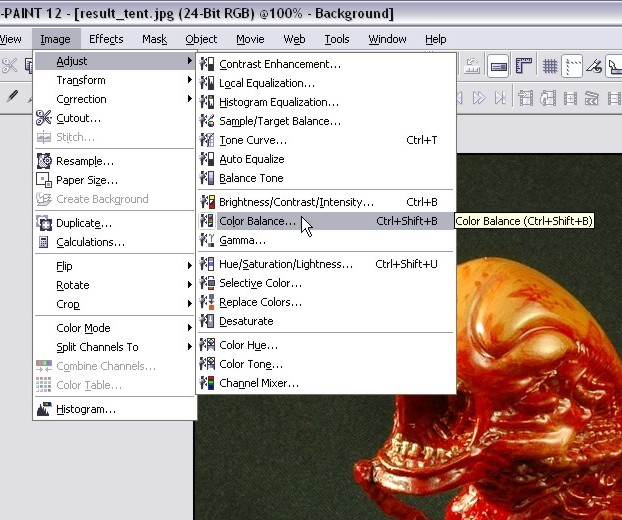
Step 1: The first thing I noticed in this photo is that the white balancing was slightly off, giving the photo a slightly greenish cast to it. We’ll want to correct that by clicking on Image > Adjust > Color Balance. You can sometimes do this quite easily by selecting the Auto-Equalize option, but I find this doesn’t work very well unless your photo has a white background.
The colors balanced out fairly well using the following settings:
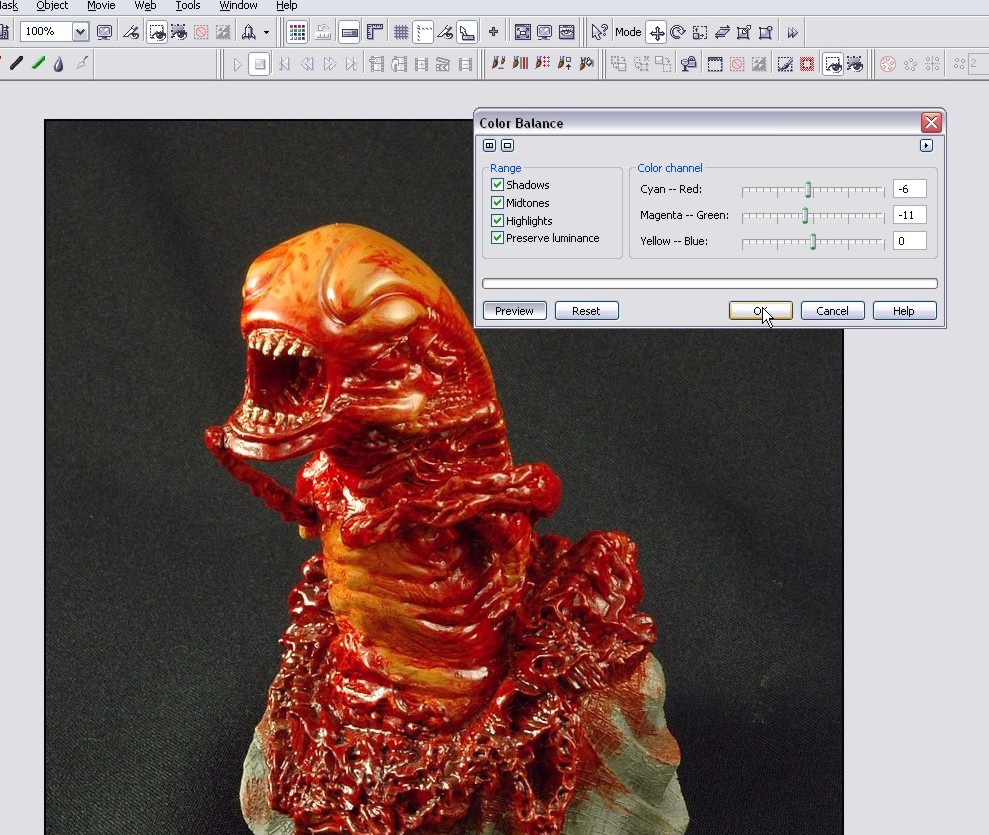
If you open up the two screenshots above in separate windows and put them side by side, the green tinge will be very obvious in the first one.
Step 2: Next up, we’ll tweak the contrast and brightness a touch. The key here is to ignore the tone of the background.. I know we want it to be as black as possible, but we’re not going to deal with that in this particular step. Instead, focus on the object in your photo… you’ll want to tweak it so that it looks more or less like how you want the final look to appear. Click on Image > Adjust > Brightness/Contrast/Intensity to run the tool or just hit Ctrl-B.
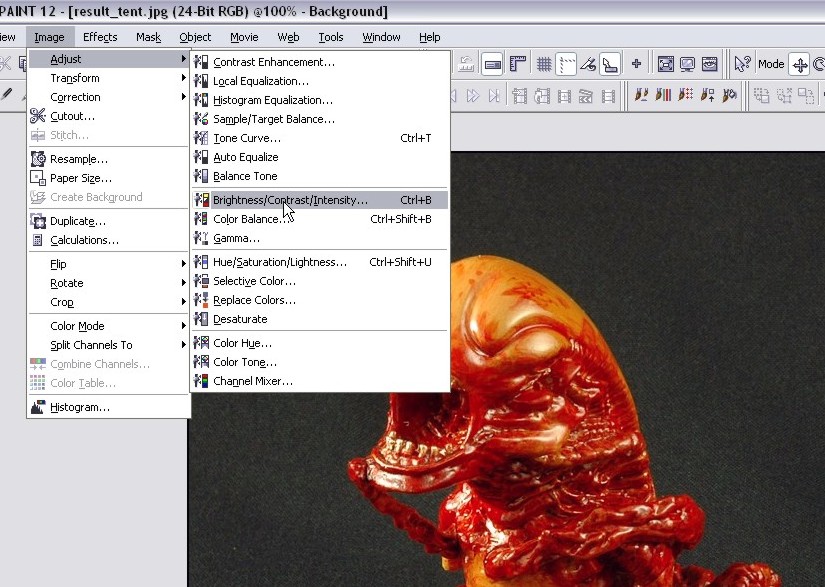
I went with these settings:
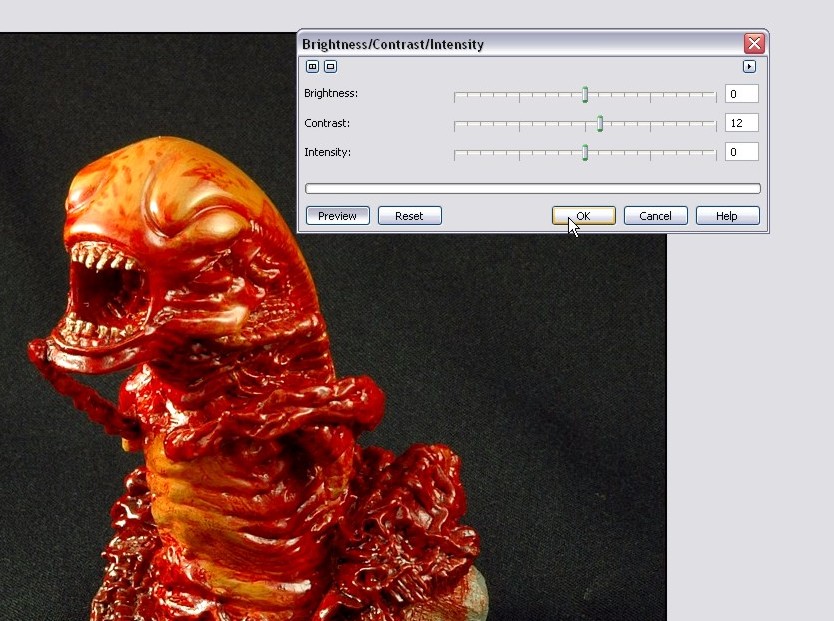
If you open up the two screenshots above in separate windows and put them side by side, the green tinge will be very obvious in the first one.
Step 3: Now we will begin to deal with the background, which at this point is too bright for my tastes. By tweaking the shutter and aperture and moving the lights during the physical photo session, you can actually get a very dark almost totally black background and bypass this step completely. It can be a bit tricky though, so I thought the really new folks could benefit from this step. The key though is to try and achieve as much as you can with the camera and do as little as possible during digital post editing in a graphics program. After all, the point here is to become a better photographer and not just a better at editing photos!
Let’s start by creating a duplicate of the photo by doing a copy/paste (hit ctrl-c followed by ctrl-v).
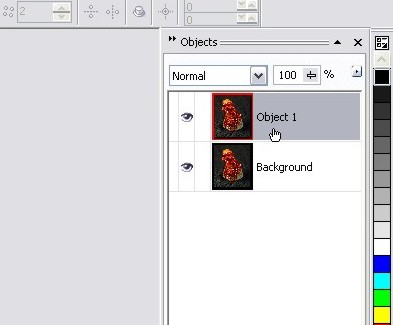
Now click on that object and pop open the Brightness/Contrast/Intensity tool again and darken your image to the point that the background is totally black. You may want to pump the intensity and contrast up so you can still make the photo’s focal object if lowering the brightness makes it too hard to see. I used the following settings:
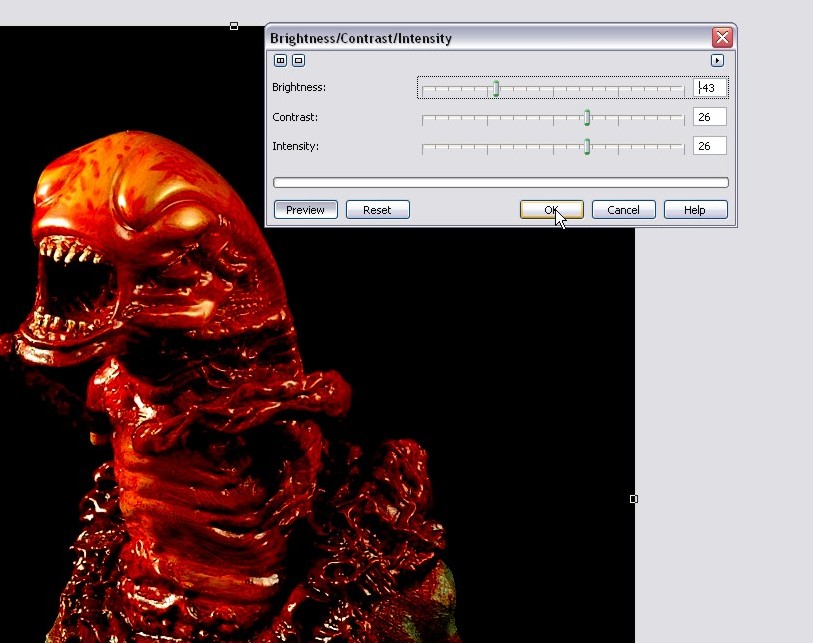
Our background is the right color now, but now our statue is way too dark and we need to get rid of it. So grab your eraser tool and use a 50 pixel rounded nib and start erasing the statue from the object.
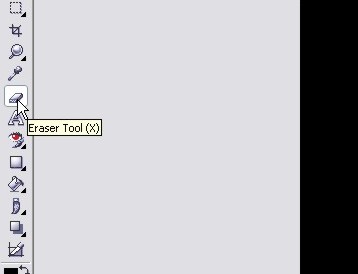
Start erasing the statue from this layer object, and the lighter version under it will start to appear:
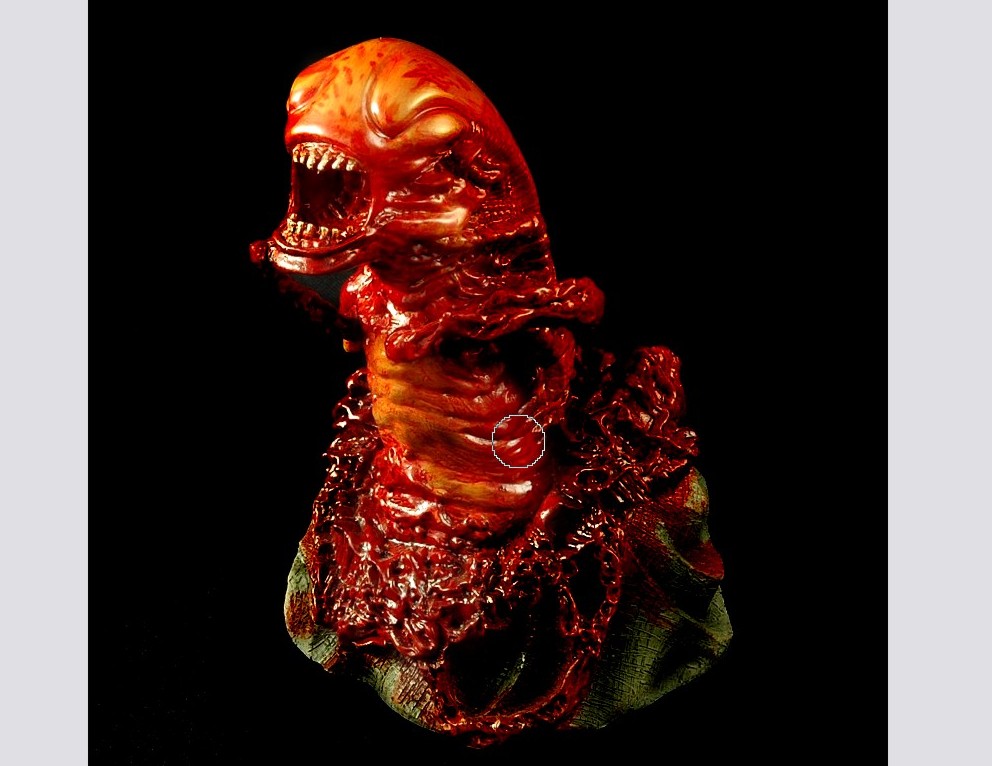
The statue has been erased from the dark layer:
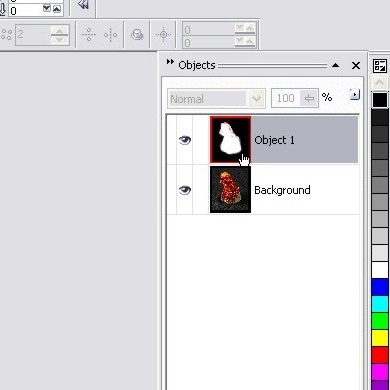
On the object docker, you can see that all that’s left of the dark layer is the black backgrounds… the white is where we’ve erased the layer.
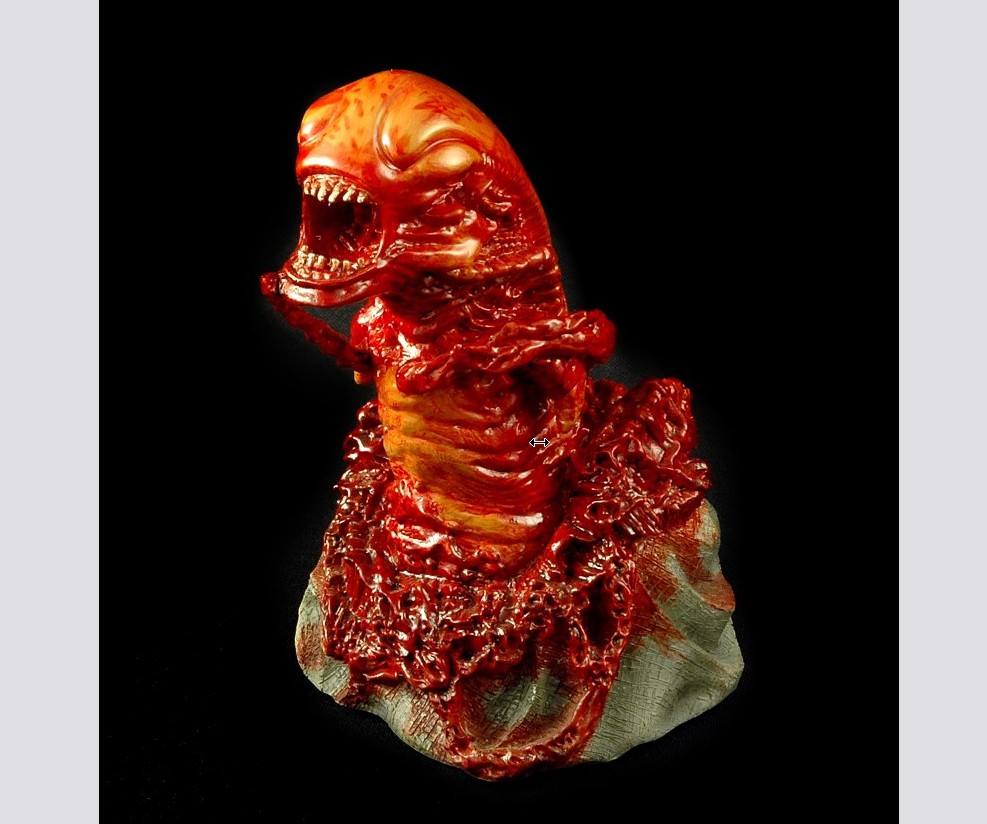
You now have a black background to the photo!
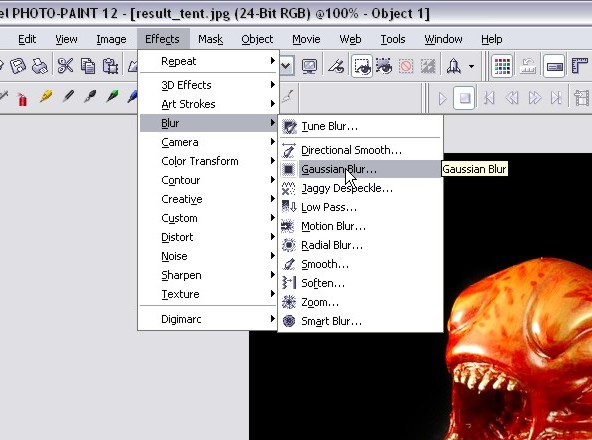
Step 4: We now have a black background on our photo, but let’s face it… it doesn’t look very natural and is sticking out like a sore thumb. Let’s take a few steps to fix that issue before we move on. We’ll start by blurring the black background layer a bit. Run the guassian blue effect by clicking on Effects > Blur > Gaussian Blur with a 3 pixel radius:
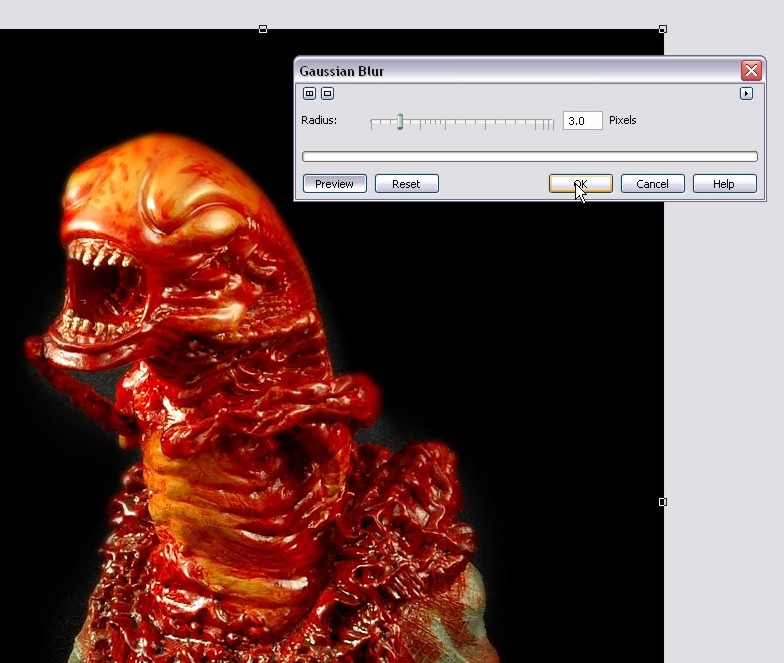
Once you’ve blurred it, we’ll reduce the opacity a bit and blend it into the background. It won’t be 100% black, but it will look a lot more natural and we’ll improve it with additional steps later on. For now, right-click on the object and select properties and reduce the opacity to 60% and click OK.
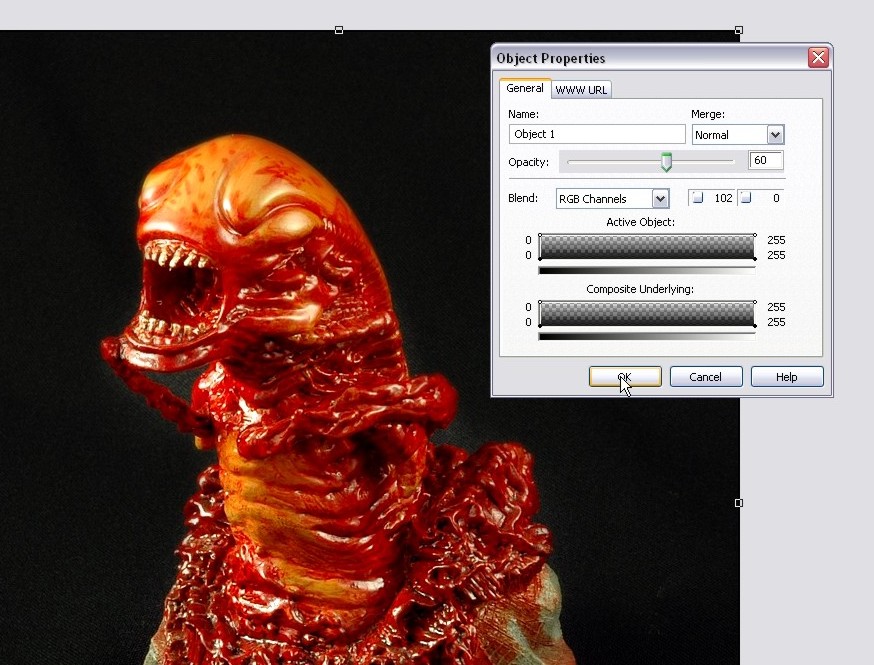
Starting to look pretty snazzy eh?
Step 5: We’re now going to add a blurry accent to the photo that will bring out the colors of the photo and give a professional touch to the entire feel of the pic. Some people will refer to this effect as the Angelic Effect or Dreamy Effect etc… whatever they call it, I’m going to show you how I use a custom version of this trick in most of my photos!
First up, we need to create another copy of the background layer where our original photo is located. Click on the bottom layer:
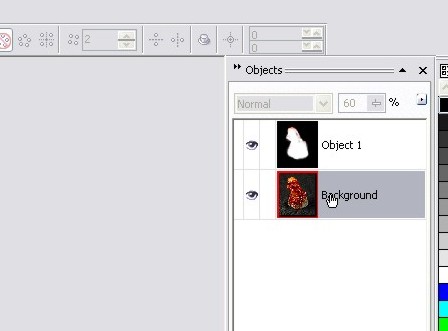
Do a copy/paste and you will end up with two objects… a duplicate of the background object and a duplicate of the dark background layer:
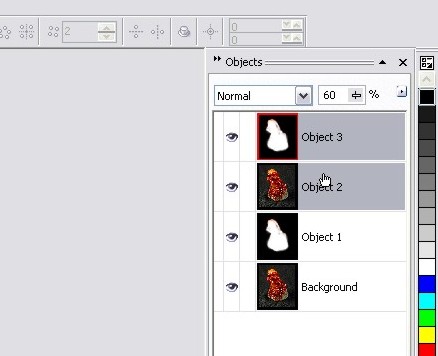
Click on the duplicate dark background layer (in this case, it’s the one at the top) and delete it. You should only have 3 objects now… the background layer of our photo, the dark background object layer and then a copy of the photo as the top object:
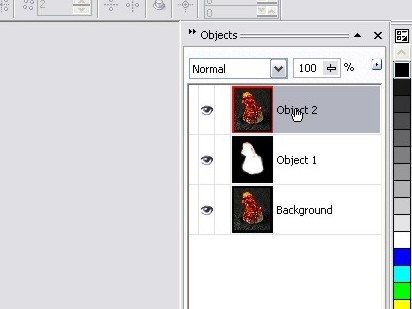
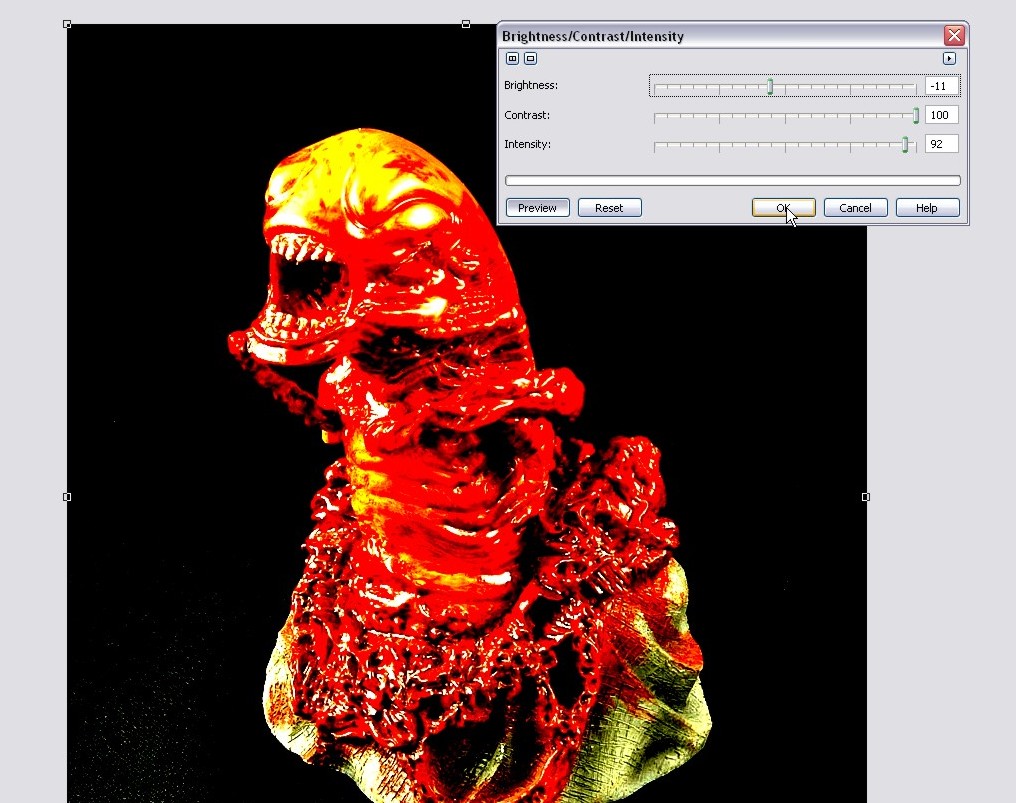
With that top object selected, we want to explode those colors so they are ultra bright and exaggerated! We do this by opening the Brightness/Contrast/Intensity tool again and pumping the contrast and intensity to the max. Here’s the settings I used:
The only problem is that it intensified some of the texture of our backdrop and turned them into white speckles on the bottom of the photo. Use the pen tool and paint some black over top of the speckles:
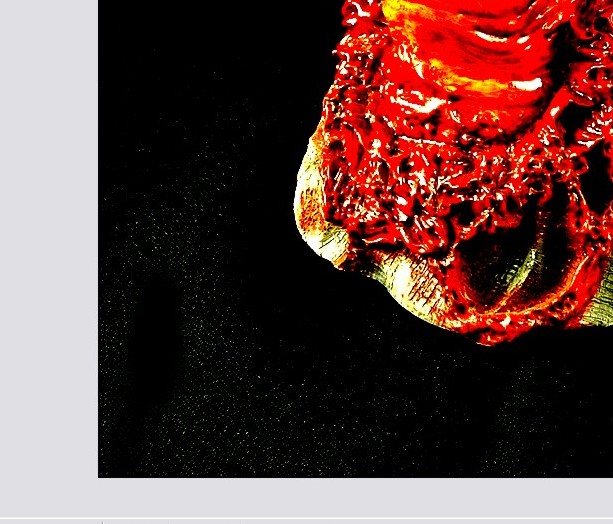
Here’s how things look at this point with the speckles all painted over:
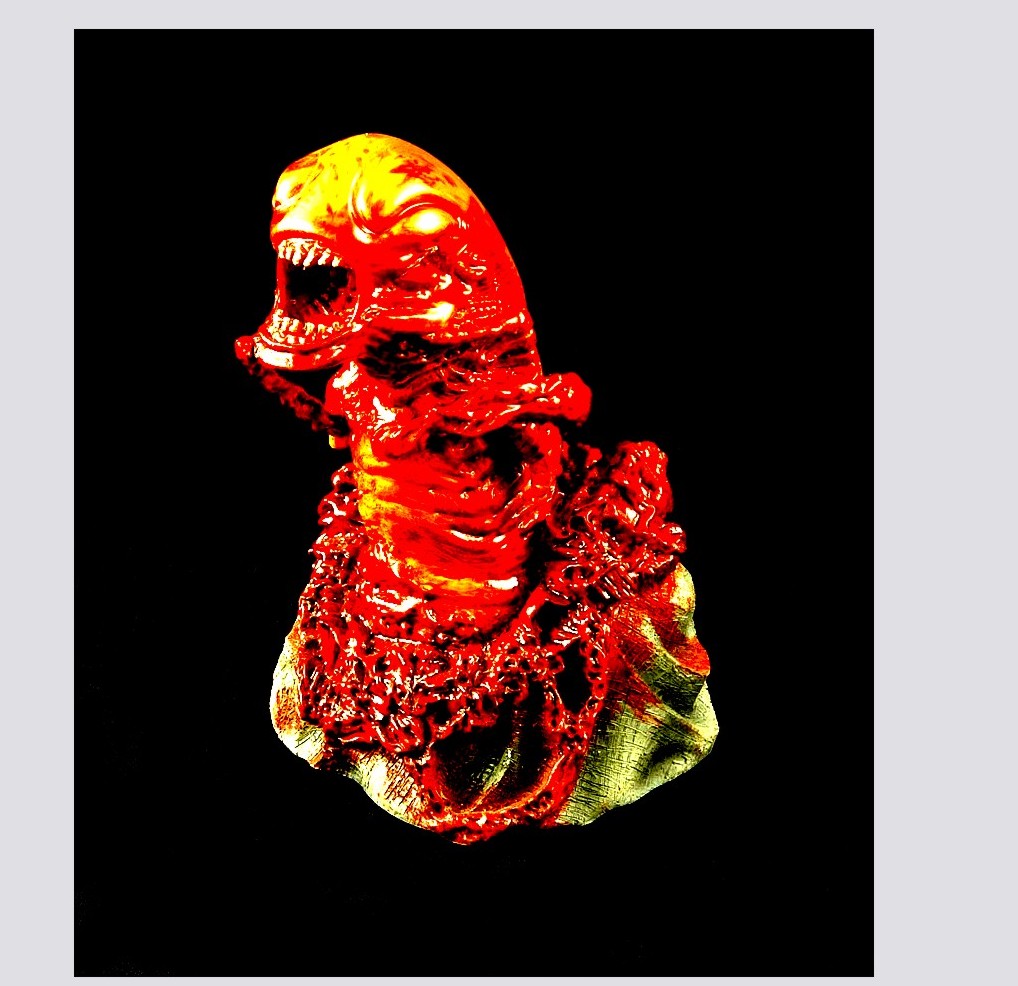
Time to blur our super bright layer! Open up the Gaussian Blur effect tool again and run another 3 pixel blur:
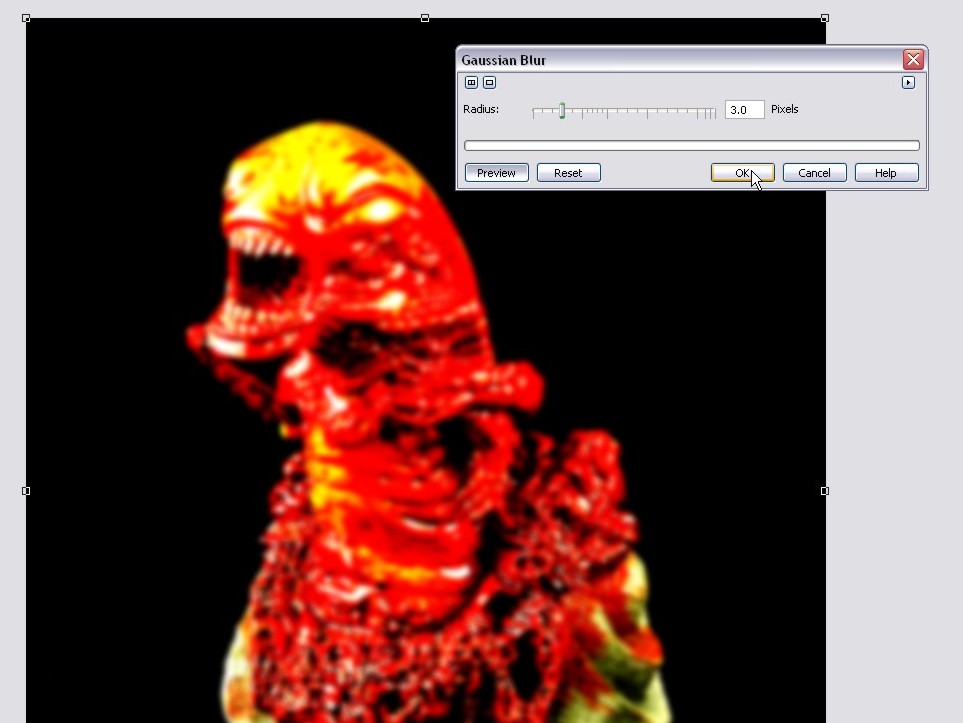
You can actually mess around with various pixel radius sizes on the blur for different effects. There’s no written rule that says you HAVE to use 3 pixels… I just like the way 3 works, but you can get more dramatic by going with a 5 or so instead.
Now, open up the properties window on this blurred object and reduce the opacity to 40%. It should now start looking pretty darn kick ass!
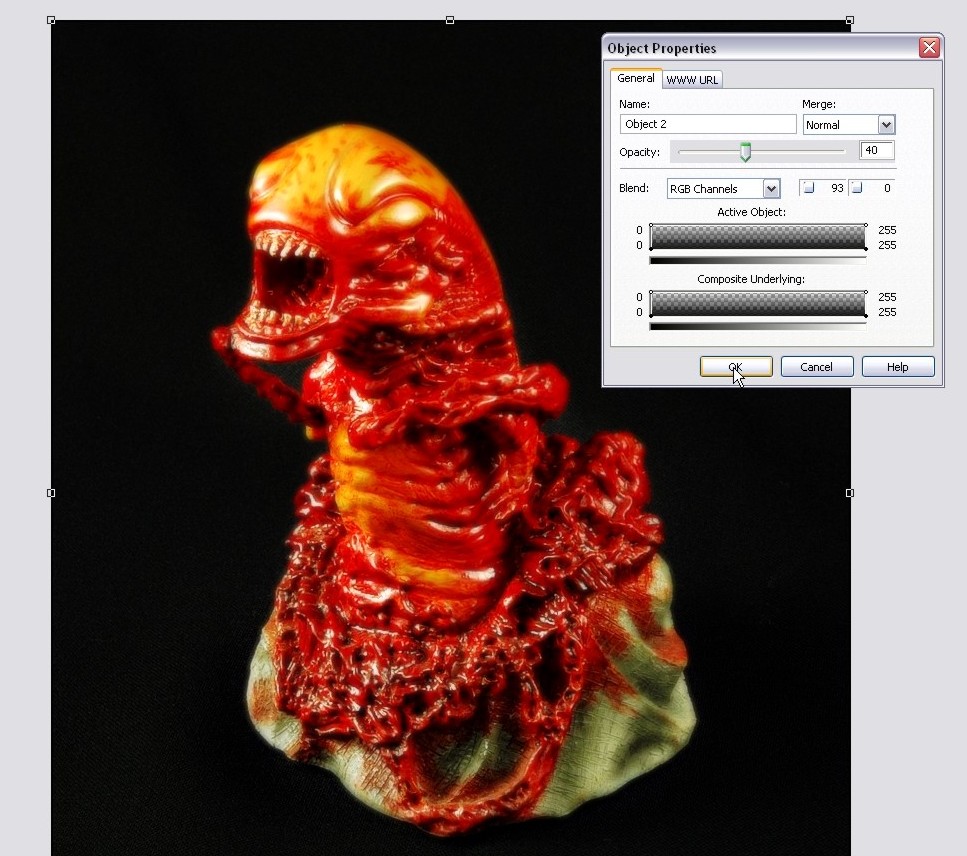
You now have the dreamy look on your photo and it’s really starting to look like a magazine ad! You can now see that the black background looks totally natural as though it was part of the photo all along and your colors are looking awesome! The only issue now is the blur has somewhat taken over the photo, so we’ll need to get some details back.
Step 6: Remember how I mentioned that I would use a customized version of that dreamy/angelic effect? Well here’s what I like to do… I grab the eraser tool with a 50 pixel rounded nib and I go and erase the blur in areas where I want the details to stand out. This will retain the soft focus effect of the photo, but you’ll still have crisp details where you want them!
Here you can see I’ve erased areas in the base to that the etchings and bloody bits stand out:
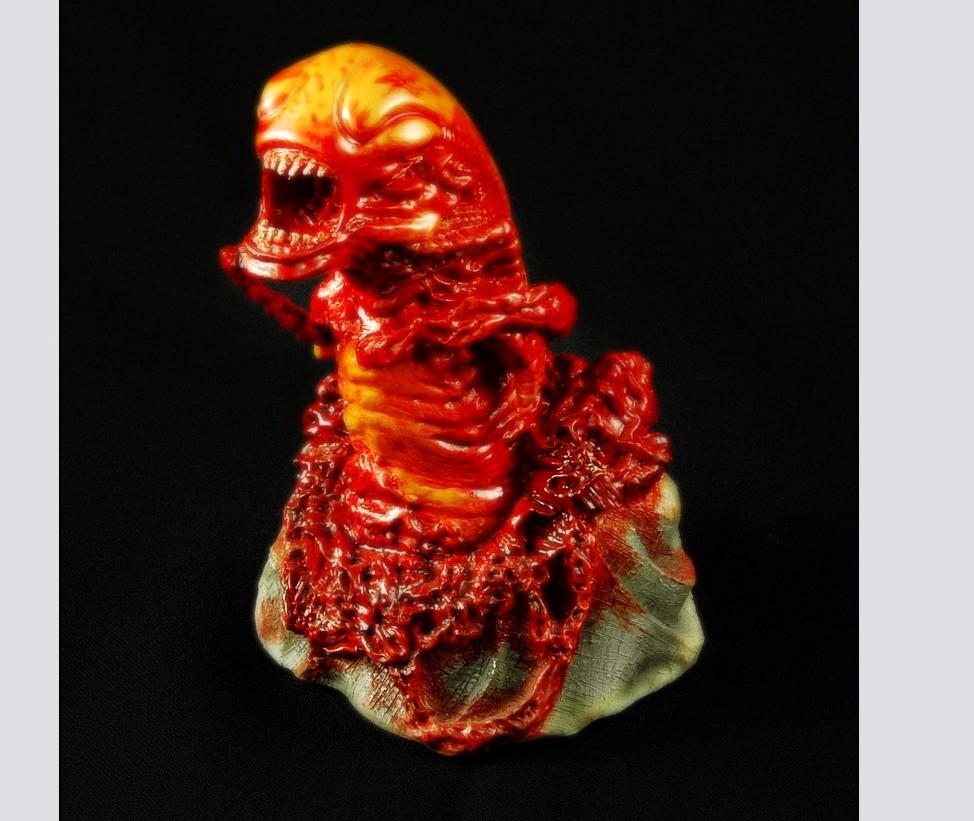
Here I’ve erased the head/mouth area and the center of the body and neck.
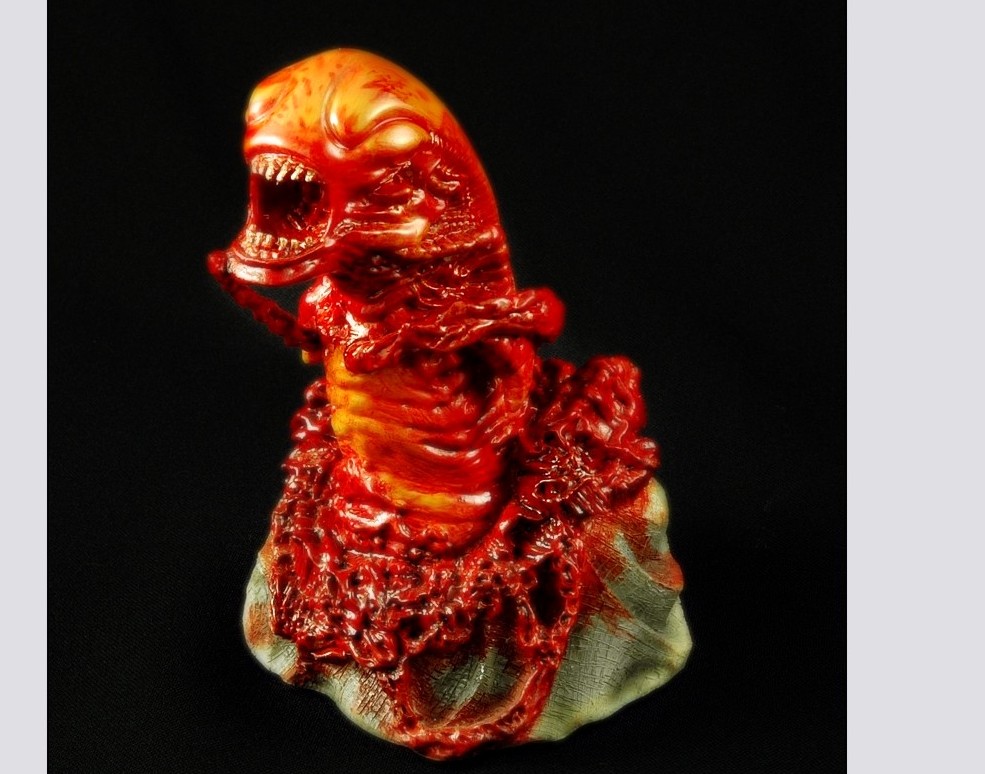
Finished removing the blurred areas where I wanted detail:
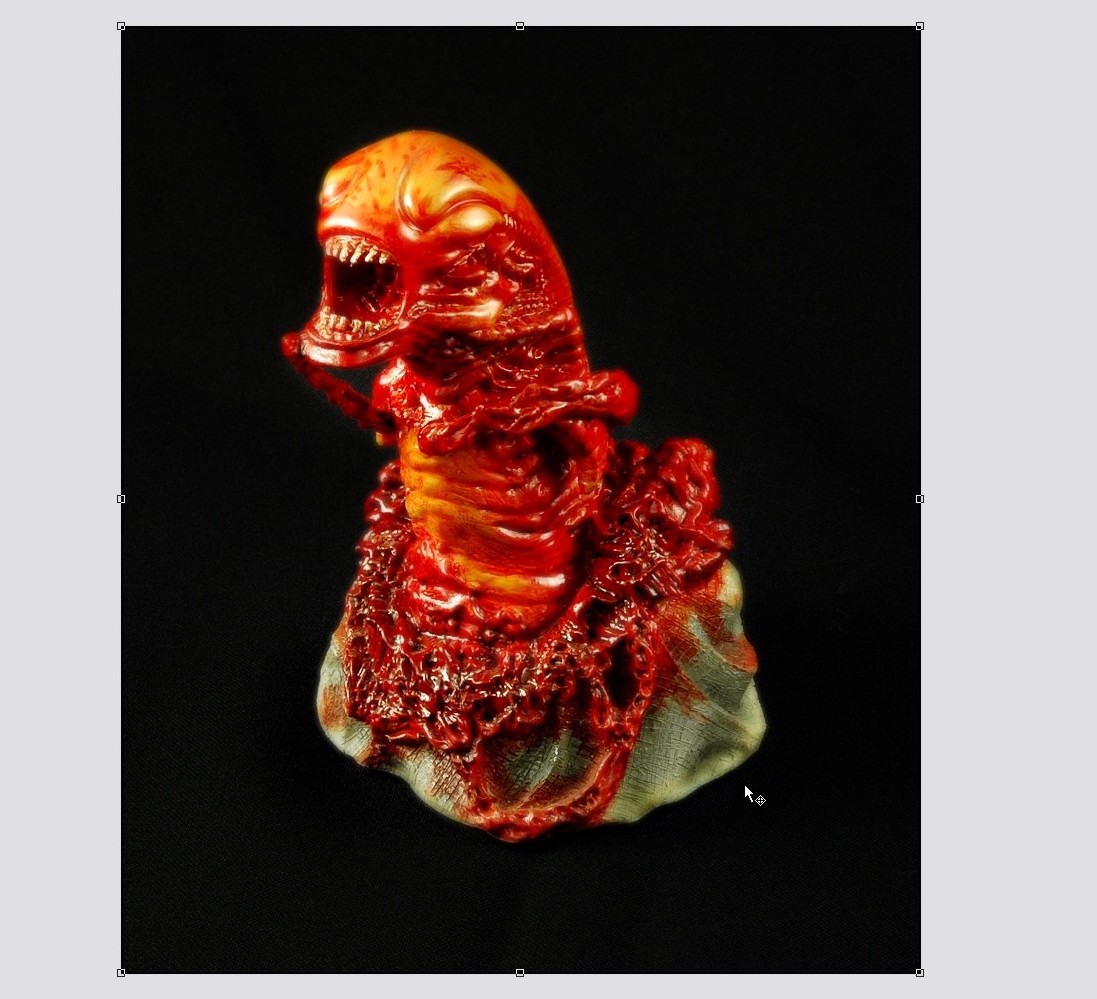
And VOILA! We have our professional photo ready for the world! Granted this photo might be a bit too gory for Cosmo, but how many tutorials to you get to see with bloodied up nasty aliens in it? Let’s add the finishing touches shall we?
Step 7: Our photo is done. but for me to post it on the web on one of my reviews, I need to add a couple of final touches… first, we need to crop out all that extra background! Select the crop tool:
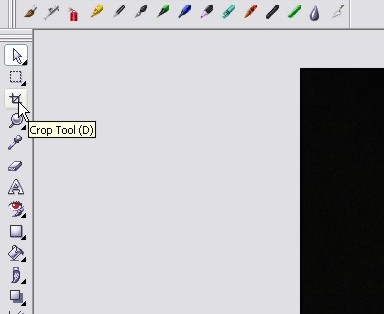
Click and drag the mouse over the area you want to keep and release the mouse button to set the crop:
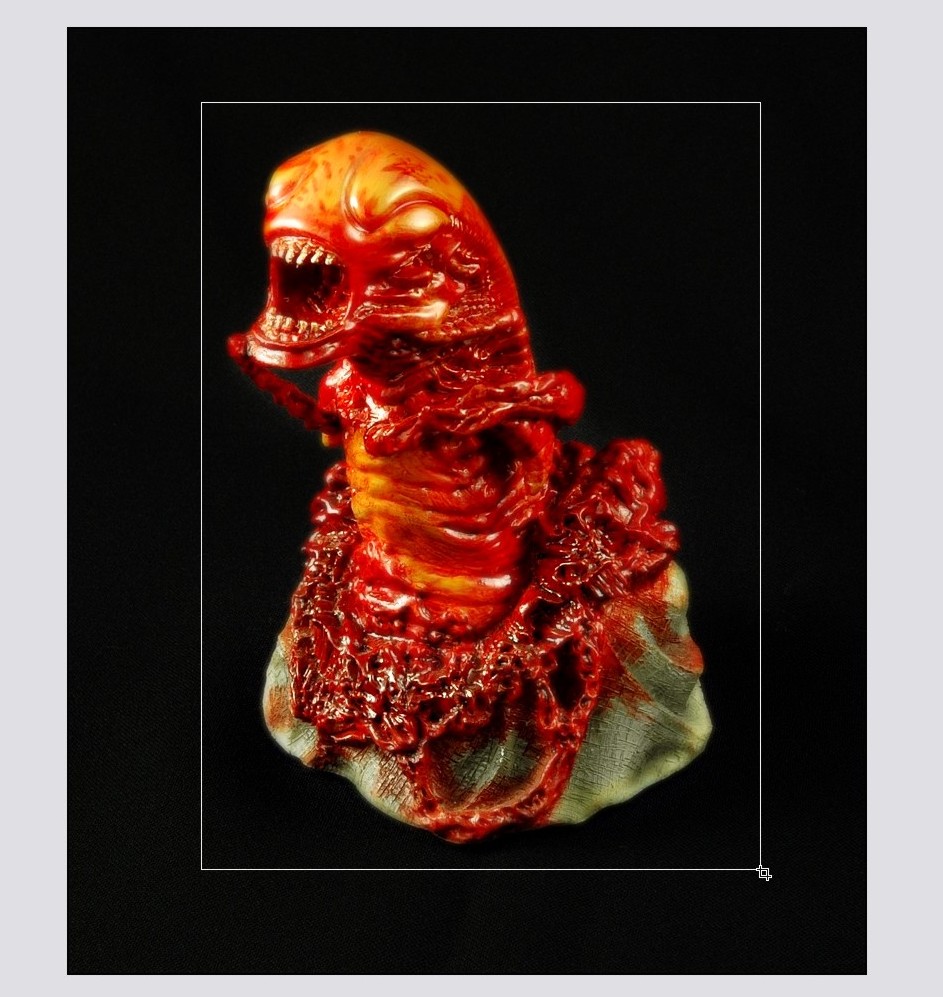
Double-click the area you selected to apply the crop and it’s done!
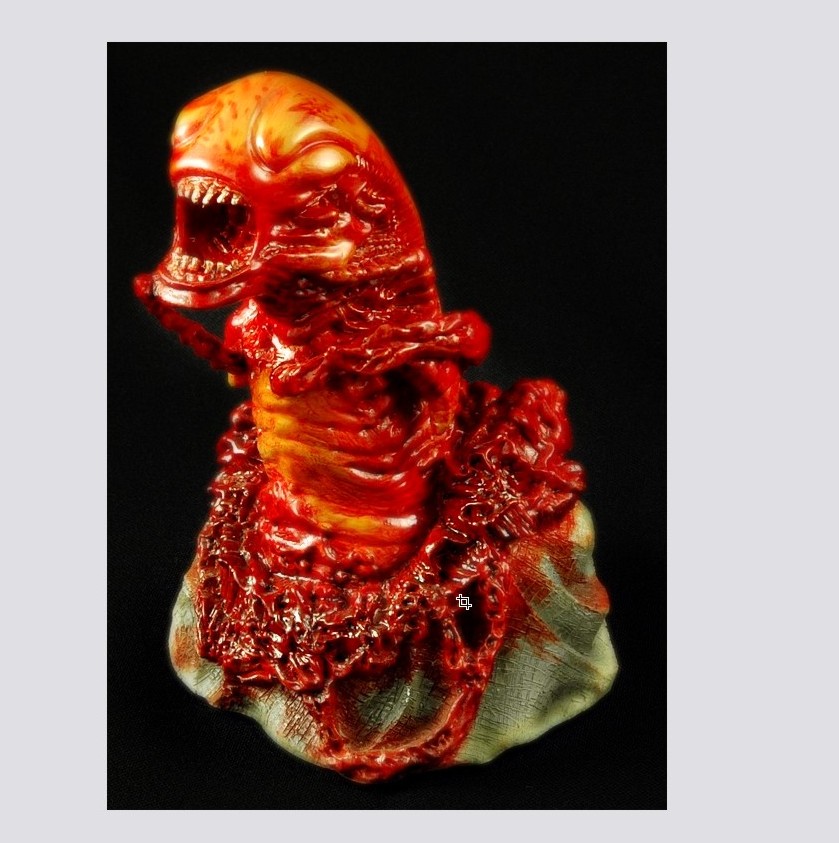
Apply a border and a watermark, and you’re ready for posting on the internet!
That’s it for another tutorial from me folks, I hope you enjoyed this one! Hopefully all the folks that bugged me about how I did all my photo work aren’t too disappointed at how easy it was. I’m just glad I finally took the time to write it all out so I can just point people to this article instead of trying to explain it in a single forum post! Please post your comments or questions below and I’ll see you on the next posting!
Thanks all!
Dan
PS. Special thanks to Corina for letting me take over her playroom for this photoshoot (The garage was way too cold today). Also note that no aliens, chestbursters, or humans were injured during the making of this tutorial… last thing I need is PETA or an Alien Queen knocking on my door.
12 thoughts on “How to Create Professional Product Shots with a Light Tent and Digital Editing!”
Dan I don’t have time to read through an 11 page tutorial atm, but from briefly browsing through looks brilliant all except that disgusting thing lol
Pleased to read no aliens, chestbursters, or humans were injured during the making of this tutorial.
Hope Corina got her room back.
Wow! I’ve always wanted to know how you did that “dreamy” effect!
Thanks for a great tutorial! =)
Cheers mate. This will come in very handy.
Awesome tutorial! Thaks for publishing it on the web for all of us!
Cheers,
Scott
Thanks Dan for all the time and effort you put in to help us fellow predator fans. Your site has been an unbelievable source of info and your photo guide is no different. More power man.
regards,
dan
I found rather than shelling out for a light tent, my £2.75 Ikea clothes bag works just aswell http://www.ikea.com/PIAimages/05345_PE079848_S4.jpg
Using the same set up as you (with the two lights either side) I got some decent results.
http://www.deviantart.com/deviation/38345567/
http://www.deviantart.com/deviation/38345357/
http://www.deviantart.com/deviation/38345425/
Nice tut Dan 🙂
Cool idea Mooey, thanks for sharing 🙂 That would definitely work well and your pics look great 🙂
Dan
I’m impressed, I ought to say. Definitely rarely do I encounter a blog that’s both educative and entertaining, and let me tell you, you’ve got hit the nail on the head. Your thought is outstanding; the issue is one thing that not sufficient individuals are speaking intelligently about. I am very happy that I stumbled across this in my search for some thing relating to this.
I am now not sure the place you’re getting your information, however good topic. I must spend a while learning much more or understanding more. Thanks for fantastic information I was on the lookout for this info for my mission.
Brilliant tutorial. Totally professional photography details. I wonder how a tiny product like this can be made this realistic. These kind of pictures actually attracts customers and thus sale happens. The picture by picture detailed explanation helped me a lot. Thanks for the lesson.